
Can you export GoHighLevel workflows? Not with a built-in button that gives you a file you can take somewhere else. Inside GoHighLevel you can copy a workflow to another sub-account you manage, or bundle it into a snapshot. To move workflows out of GoHighLevel entirely, you need a tool that reads the workflow from the page you have open. The StrideOps browser extension does exactly that, and imports every workflow into StrideOps as a draft.
I scaled my own AI agency past $50K a month on GoHighLevel, Vapi and n8n. When I moved that agency onto StrideOps, the workflows were the part I dreaded. Years of automations, built for dozens of clients, and no clean way out. This post covers every option I found, what each one actually carries over, and the route I ended up using.
What GoHighLevel lets you do natively
GoHighLevel gives you two ways to move a workflow, and both keep it inside GoHighLevel.
Copy a workflow to another sub-account. Agency admins can copy a single workflow from one sub-account to another one they have access to. It lands as a draft, and related assets like tags, custom fields, custom values, pipelines and templates come along with it. This is the cleanest option when you are cloning a client setup inside the same agency.
Put it in a snapshot. A snapshot bundles a sub-account's assets (workflows, funnels, pipelines, custom fields, calendars, forms and more) so you can load them into another sub-account. Snapshots carry structure, not live data, so contacts and conversations stay behind. Loading one into an account that already has assets can overwrite or duplicate items, so test it on a blank sub-account first.
Both are useful. Neither gives you a portable file, and neither helps if the destination is not a GoHighLevel account. That is why the GoHighLevel ideas board has open requests for workflow export: people want their automations to be theirs.
Why "just rebuild it" is the expensive answer
The usual advice is to screenshot every workflow and rebuild it by hand in the new tool. I priced that out for my own agency and it was the single biggest cost of switching.
A mature account does not have five workflows. It has dozens: lead nurture, appointment reminders, no-show recovery, review requests, pipeline moves, internal notifications, every one with its own waits, if/else branches and custom field logic. Rebuilding by hand means:
- Reading each step off the GoHighLevel canvas and recreating it in a different builder.
- Re-typing every SMS and email body, and getting the merge fields right.
- Testing every branch again, because one wrong condition sends the wrong message to a real lead.
It is weeks of work, and the risk is not the work itself. It is the step you missed that silently stops a reminder from going out.
How to export GoHighLevel workflows with the StrideOps extension
The StrideOps browser extension adds a Copy for Stride button to GoHighLevel workflow pages. It reads the workflow definition from the page you already have open, so it works on any workflow you can see in your account. Here is the full process.
GoHighLevel to StrideOps, without rebuilding

Your GoHighLevel workflows
Open in your browser

StrideOps extension
Import all directly
GoHighLevel import folder
Every workflow as a draft
Review and publish
One group at a time
1. Install the extension
The extension installs as an unpacked extension in Chrome (a signed version exists for Firefox). It is not a Chrome Web Store listing, so the setup is manual but quick:
- Download the extension zip from the Import from GoHighLevel window in StrideOps and unzip it.
- Open
chrome://extensionsand turn on Developer mode in the top-right corner. - Click Load unpacked and select the unzipped folder.
2. Sign in and pick the destination
Sign in to StrideOps in the same browser. Open the extension and choose the organization the workflows should land in.
3. Import one workflow or all of them
Open your workflows in GoHighLevel. You have three options:
- Import all directly pulls every workflow into StrideOps in one run. The extension opens a progress tab; keep it and the GoHighLevel tab open until it finishes.
- Import workflow directly brings in only the workflow you are looking at.
- Copy for Stride copies the workflow to your clipboard, so you can paste it into Import from GoHighLevel inside any StrideOps workflow.
4. Review the drafts
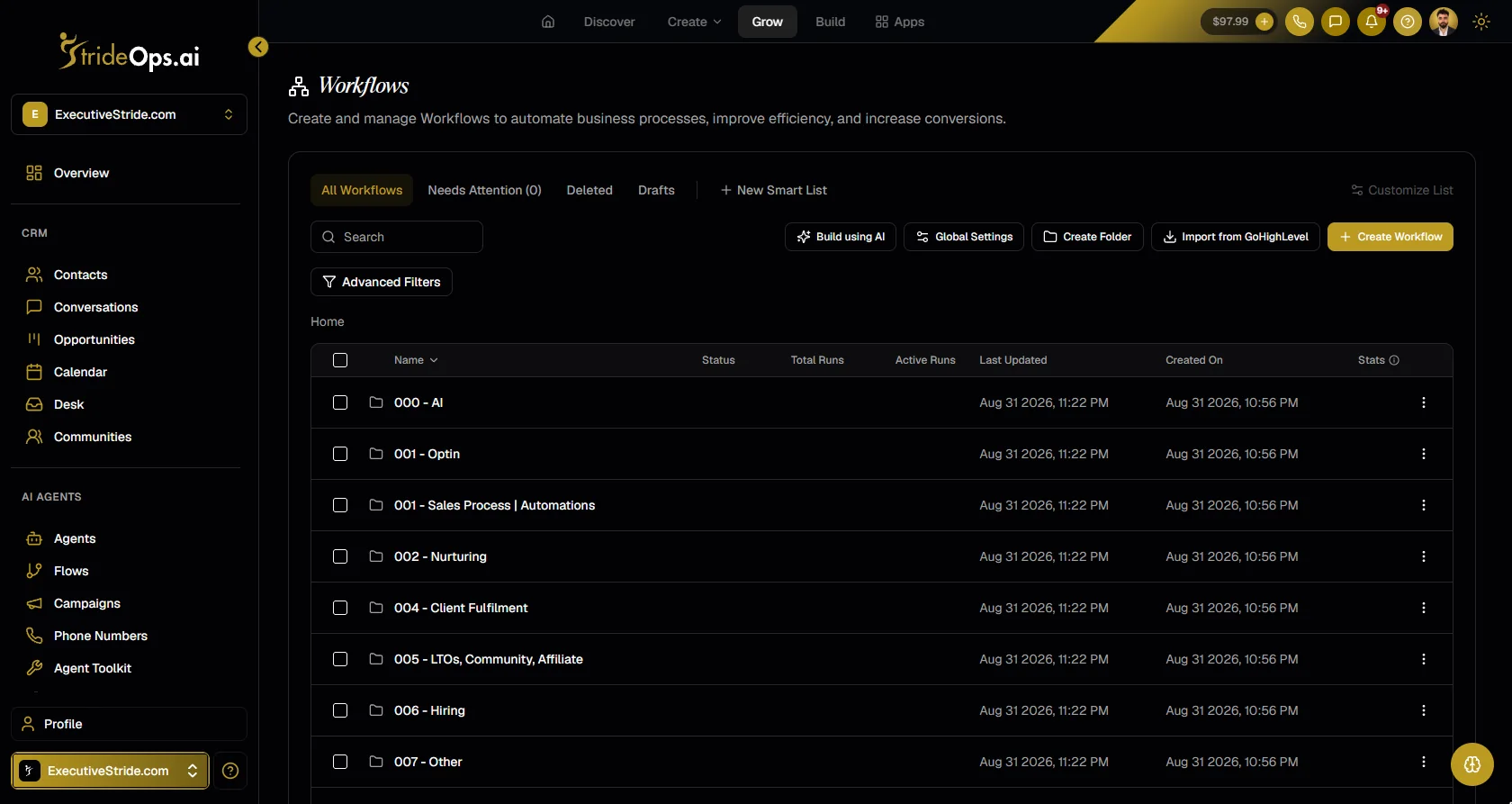
Everything lands in a GoHighLevel import folder as drafts. Nothing goes live until you publish it, which matters if you are still running GoHighLevel side by side.
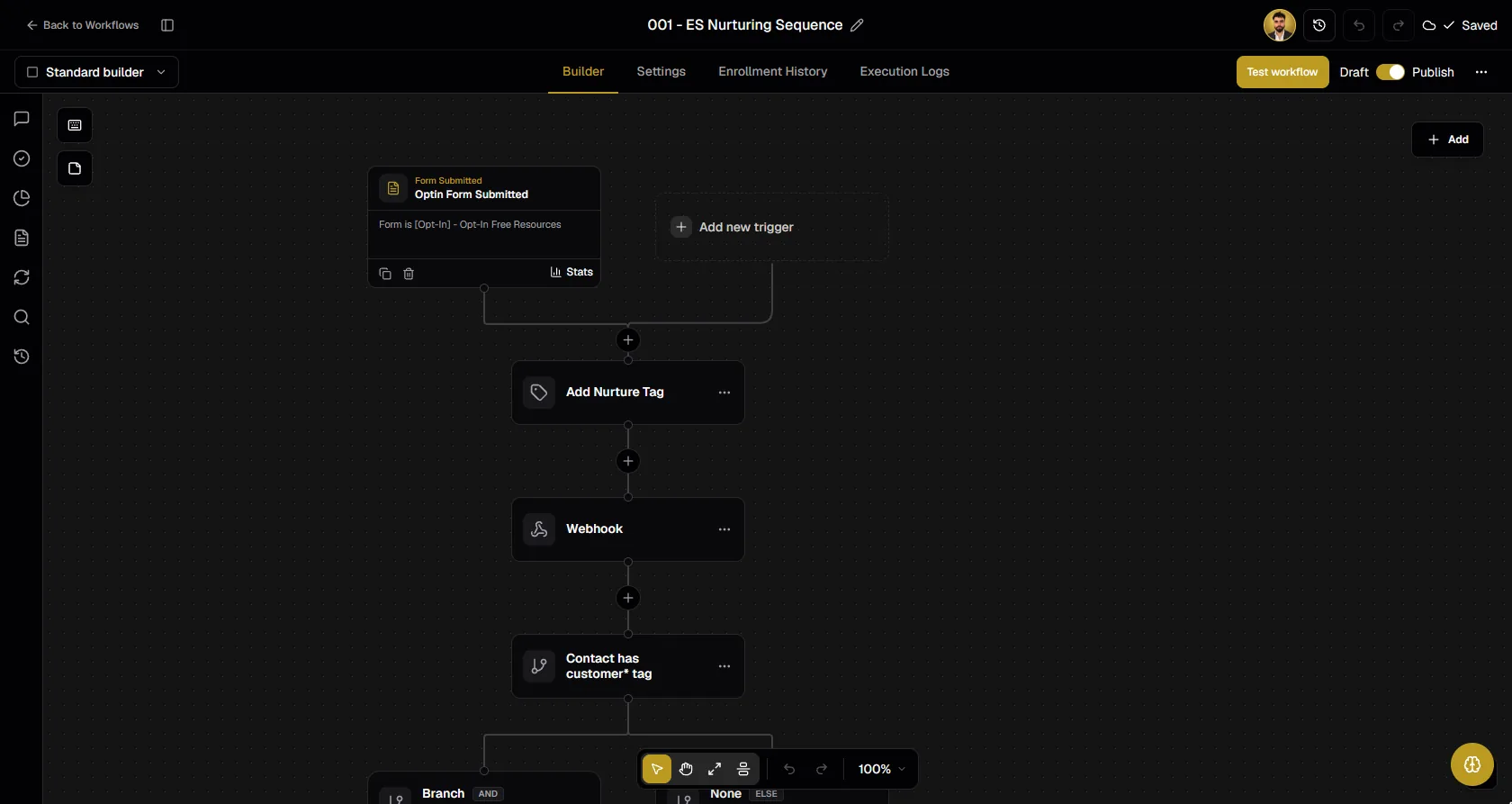
Any step that does not map one to one shows up as a visible placeholder on the canvas instead of failing silently. You can see exactly what needs attention and finish it in the StrideOps workflow builder.
5. Re-import whenever you need to
Re-importing updates the workflows it already brought over, matched by their GoHighLevel ID, instead of creating duplicates. If you keep editing in GoHighLevel during the switch, run it again at the end and your drafts catch up.
What comes across, and what does not
Be clear about scope before you plan a migration. Here is what moves:
| Asset | How it moves |
|---|---|
| Workflows | Browser extension, imported as drafts |
| Custom fields, custom values, email templates | Their own importers |
| Conversation AI bots | Their own importer |
| Contacts and opportunities | Two-way sync with your connected GoHighLevel account, or a CSV import |
| Funnel pages | Paste up to 10 page URLs and they become draft funnel steps (a capture of each page, so plan a quick polish) |
| Snapshots | Not supported. StrideOps imports the pieces above, not a snapshot file |
One thing to know about the contact sync: a large first sync can enroll new contacts in any live "Contact Created" workflows. Leave your imported workflows as drafts until the first sync finishes.
What I would do differently if I migrated again
- Import everything first, publish nothing. Get all the drafts in, then switch them on one group at a time.
- Start with the workflows that touch leads. Speed-to-lead and appointment reminders are where a gap costs money. Internal notifications can wait.
- Use the move to add what was missing. In GoHighLevel my voice AI lived in a separate tool glued on with webhooks. In StrideOps an AI call or an AI text conversation is just a step in the workflow, so every imported nurture sequence could get a real call where it used to send a third text. If you want the full picture of that build, read how to call Facebook leads automatically.
FAQ
The bottom line
You can export GoHighLevel workflows, just not with a button inside GoHighLevel. If the destination is another sub-account, use GoHighLevel's copy feature. If the destination is StrideOps, the browser extension imports every workflow as a draft in one run, flags anything that needs a second look, and leaves your live account untouched until you are ready.
See the full migration path on switching from GoHighLevel, or see what the StrideOps workflow builder adds once your automations are in.
Bring your workflows with you
Import every GoHighLevel workflow as a draft, keep contacts in sync while you switch, and add AI calls and texts as workflow steps.
About the author

Josh Pocock
Founder & CEO, StrideOps.ai
Josh Pocock is the founder and CEO of StrideOps.ai. He spent eight years building sales and marketing companies - most recently Executive Stride, the AI appointment-setting agency that now runs end to end on StrideOps.ai as customer zero. He went all-in on the platform full-time in late 2025.
Josh Pocock is the founder and CEO of StrideOps.ai. He scaled his own AI agency past $50K a month on GoHighLevel, Vapi and n8n, and his agency Executive Stride has built systems for 400+ businesses. StrideOps started as the platform he built to replace that stack.
GoHighLevel workflow copy and snapshot behavior is described from GoHighLevel's documentation and community guides as of October 2026. Features change, so check your agency settings before relying on them.Read more

The Best GoHighLevel Alternatives in 2026
Best GoHighLevel alternatives in 2026 for AI calling, CRM, white-label and funnels, compared on price and strengths, using each vendor's own pages.

GoHighLevel Conversation AI Alternative With Shared Memory
GoHighLevel Conversation AI alternative: what to compare, what Conversation AI costs, and how to move your bots to a text agent with memory.

AI Appointment Reminder Calls: Setup, Script and Timing
AI appointment reminder calls that confirm, catch reschedules and save no-shows: when to call, what the AI should say, and how to build it as one workflow.